Tuesday November 01
referencing
- bookmark
-
footnotes/endnotes - cross-reference
- Templates
- working
with others - comments
- tracking
-
Exercise One:
Exercise
Two:
Footnotes and Endnotes are used to give credit to sources of
any material borrowed, summarized or paraphrased. They are intended to refer
readers to the exact pages of the works listed in the Works Cited,
References, or Bibliography section.
When mentioning a work for the first time, a full and complete Footnote or
Endnote entry must be made.
NOTE: Only one sentence is used in a Footnote or Endnote citation,
i.e., only one period or full stop is used at the end of any Footnote or
Endnote citation. In a Bibliography, each citation consists of a minimum of
three statements or sentences, hence each entry requires a minimum of
three periods, e.g., a period after the author statement, a period
after the title statement, and a period after the publication
statement (publication/publisher/publication date).
First Footnote or Endnote example:
     2 G. Wayne Miller, King of Hearts: The True Story

of the Maverick Who Pioneered Open Heart Surgery

(New York: Times, 2000) 245.
Bibliography example:
Miller, G. Wayne. King of Hearts: The True Story of the

     Maverick Who Pioneered Open Heart Surgery. New York:

     Times, 2000.
Exercise One: Add a
footnote
We will go over Footnotes and Endnotes and then at the end of
this section your work will be to copy
and read the following article;
McNulty, Timothy. (Sunday, October 30, 2005 ). Defend
yourself against the coming robot rebellion. Online at http://www.post-gazette.com/pg/05303/596210.stm,
viewed, 11/01/05. Post-Gazette.
To do this exercise
it would be easiest if you numbered all your paragraphs (highlight the whole
bloody story and Insert > Numbers
-
Put a footnote after "A new book" (the
first few words) and put the author and book title and etc as I did above.
-
Put a footnote after Carnegie Mellon
University's Robotics Institute - go to the site and list THREE
Current projects (it
is under Research)
-
Put a footnote after "Any robot could rebel,
from a toaster" (third paragraph) and tell a story about how once your toaster
rebelled)
-
Put a footnote after "roboticists" and tell
what a "roboticists" is.
-
Put a footnote after (A tip for
telling whether a new acquaintance is a real person or a humanoid robot: "Does
your friend smell like a brand-new soccer ball?") and make a comment -
Paragraph 8
- Put a footnote after "2001: A Space
Odyssey" Paragraph 13 and look up on the Internet and put in
information into your footnote
- Put a footnote after "Terminator 3"
Paragraph 13 and look up on the Internet and put in information into
your footnote
- Put a footnote after "Comedy Central's
"Reno 911" Paragraph 16 and look up on the Internet and put in
information into your footnote
- Put a footnote after "Dr.
Frankenstein" Paragraph 26 and look up on the Internet and put in
information into your footnote
- Put a footnote after "Where's My
Jetpack?" and make up your own footnote
Footnotes and endnotes are used in documents and books to show the source of
borrowed material or to enter explanatory or supplementary information.
Footnotes go at the bottom of a page and endnotes are placed at the end of a
document.
When you write a document that requires research, giving credit for your
sources is easily done by adding a note at the bottom of the page with a
footnote or at the end of the document with an endnote.
You can also use footnotes and endnotes to enter additional explanatory
material or even just an aside comment that wouldn't fit with the main flow of
text in the body of the document.

Footnotes and endnotes make it easy to give credit to your
sources or to add explanatory material.
There is one basic difference between a footnote and an endnote: where it is
placed. A footnote is at the bottom
of a page and an endnote is
at the end of a document (or possibly at the end of a section, which
we'll discuss in the next lesson). That's it.
Regardless of the type of source you are referencing—a book, a periodical, an
online source, whatever—you can use either a footnote or an endnote. The same is
true for adding a comment or explanatory note.
The reason either will do is that they look much the same. Both footnotes and
endnotes contain a note reference mark in the body text to
indicate that additional information is in a footnote or endnote, but with a
different numbering system used for each to tell readers whether to look for the
note at the end of the page or the end of the document.
Footnotes and endnotes are both separated from the body text by a short
horizontal line. And both have note text, either at the bottom of the page or
the end of the document; the note text in both is in a smaller font size than is
the body text.

The basic difference between footnotes and endnotes is where they are placed
in a document.
 Footnote
 Endnote
 Note
reference marks
Note
reference marks
Because footnotes appear at the bottom of the page, readers can see them in
context, when the source material or an additional explanation might be most
useful. On the other hand, if sources or supplementary information can be looked
at afterward, endnotes might be best.
Then again, there's less space to enter note text at the bottom of the page
in a footnote. If a footnote is very long, it will continue on to the bottom of
the next page. In that case, you might want to use an endnote instead.
Imagine that you need to enter a footnote or endnote in a paper about the
solar system to acknowledge a source about the Mariner space missions.
You would begin by positioning the insertion point where you want the note
reference mark to appear. Then you would:
- Point to Reference on the Insert menu, and click Footnote.
- In the Footnote and
Endnote dialog box, click
either Footnotes or Endnotes, and then click the Insert button at the bottom of the dialog
box.
Word will add the note reference mark at the insertion point in the document,
which is automatically numbered for you. A note reference mark with the same
number is inserted at the bottom of the page, if you clicked Footnotes, or at the end of the document, if you clicked Endnotes.
Then you would enter the note text to acknowledge the source beside the
reference number. For example: Author, book title, publisher, date of
publication, page number, and so on.
When you add the next footnote or endnote, Word will automatically number it
in the correct sequence. If you later add a note before this note, Word will
number the new note correctly and renumber the other notes in the document.
Tip You can skip the dialog box and insert a
footnote by pressing ALT+CTRL+F and an endnote by pressing ALT+CTRL+D. If you're
working in normal view, this opens a note pane at the bottom of the window to
enter note text, which you'll learn about in the next lesson.
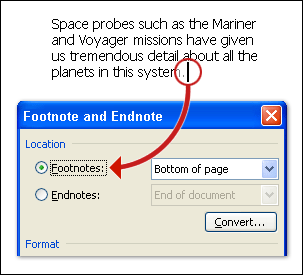
Position the insertion point where you want the note reference
mark to appear. In the Footnote and Endnote dialog box, click
either Footnotes or Endnotes. The note reference
mark will appear after the dialog box is closed.

Rest the pointer on the note reference mark in the
document and the note text appears in a ScreenTip. |
If you want to review your note text after you enter
it, you don't have to scroll down to the bottom of the page or to the end
of the document. Rest the pointer on the note reference mark in the
document. The note text appears in a ScreenTip.
Tip If you save a Word document as a Web page,
Word automatically changes footnotes and endnotes to hyperlinks and moves
footnotes to the end of the Web page. If the document also contains
endnotes, Word places them directly after the footnotes, separating the
footnotes from the endnotes with a short horizontal
line. |
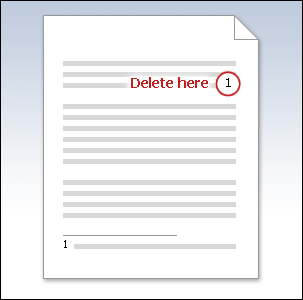
Delete the note reference mark in the body of the
document, not at the bottom of the document. |
To delete a note, select the note reference mark
in the body of your document and press DELETE. That also deletes the
note reference mark and the text at the bottom of the page or at the
end of the document. Do not try to delete the note by just deleting
the note text itself. That will leave the note reference mark in the
body of the text.
When you delete a note reference mark, Word automatically
renumbers the remaining notes. | |
|
Exercise
Two: Add an Endnote - Copy the paragraph below
- Bold and centre and highlight the words 'case study'
- Place the insertion point at the end of the third paragraph, which
ends with the word "wanderers."
- On the Insert menu, point to Reference, and then click Footnote.
- In the Footnote and Endnote dialog box, under Location, click Endnotes and then, at the
bottom of the dialog box, click Insert. Notice that the
number format for the endnote is different from the one for the
footnote. It's a lowercase roman numeral.
- Beside the note reference mark "i" at the end of the document, type
the source for an article from the Internet: Author, article title, complete URL,
date the article was accessed. (you will need to find this
on the Internet).
See a note on screen
- Scroll back up to the top of the document (page 1).
- Rest the pointer on the note reference mark "1" at the end of the
second paragraph that ends with the word "system." The note text that
says "Author, book, title, and so on" will display in a ScreenTip.
If the ScreenTip does not display, the feature is turned off. On the
Tools menu, click Options. Click the View tab, and then select the ScreenTips
check box.
Delete a note
- Select the note reference mark "1" at the end of the second
paragraph that ends with the word "system."
Tip You can select the note reference mark
with the mouse by dragging over the text. Or use the keyboard by placing
the insertion point to the left of the note reference mark and then
pressing SHIFT+RIGHT ARROW.
- Press DELETE. Scroll down to the bottom of the page. The footnote is
gone.
|
|
case
study
As far as we know, there
are nine planets locked in orbit around the Sun. Only one, our own Earth,
supports life. But there are countless other suns throughout countless
galaxies scattered across the expanse of the universe. We still don’t know
if life exists on another planet in some other galaxy.
During the past 15 years,
space probes such as the Mariner and Voyager missions have given us
tremendous detail about all the planets in this system.
From the Center of
the Universe to the Edge of a Galaxy
All of the ancient
peoples regarded the Earth as the center of the universe (a
geocentric perspective), motionless under a canopy of stars that
circle from east to west. The planets were perplexing to the ancients
because they appeared to wander among the stars. Some of them periodically
slowed down until they began moving in the opposite, western
direction—retrograde motion. After a short distance, they slowed down
again and resumed their eastward motion. So the ancient peoples called the
planets wanderers.
The Solar
System
Let’s look at the
planets of our solar system briefly, one by one. The first four are known
as the terrestrial planets. The next four are the gaseous
giants. 
Mercury
Named for the
wing-footed messenger of the Roman gods,XE "Orbit:Mercury" Mercury races
around its orbit at a dizzying speed of 30 miles (48 kilometers) per
second, making the Mercurial year only 88 Earth days long. XE
"Rotation:Mercury"In contrast, one rotation around its axis—or a single
day—takes almost 59 Earth days.
Daytime
temperatures rise to about 800 degrees Fahrenheit (341.33 degrees
Celsius), which is not surprising given its close proximity to the Sun.
That proximity makes it difficult to study Mercury from the earth because
of the interference of the Sun’s brilliance.
Mariner 10 gave
us a wealth of information about Mercury when it approached the planet in
1974 and 1975. We learned that Mercury has an extremely weak magnetic
field, which could indicate a hot metallic core, such as molten iron.
Geologists think Mercury may be the most iron-rich planet in the solar
system. Mercury’s crust seems to be silicate, like that of
Earth. |
Exercise three
Copy the article "E-mail Making You Crazy?" at Discovery.com
Find these words (Use ctr. F) and using Bookmarks put them at the top of your
document. You will need to use under_score to combine words.
infomania, King’s_college, Veritas_Software, LCD_screens, BusyBody,
data_smog, instant_messages,