To begin, open Microsoft Word.
Click
During the lessons that follow, you will be asked to "click" items. When asked to click:
- Point to the item.
- Press your left mouse button once.
If you are asked to double-click an item:
- Point to the item.
- Quickly press your left mouse button twice.
If you are asked to right-click:
- Point to the item.
- Press your right mouse button.
Options
The following is an introduction to various features of the Microsoft Word screen.
Status Bar
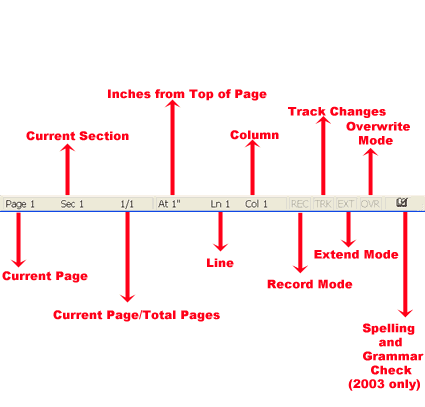
The Status bar appears at the very bottom of the screen and provides such information as the current page, current section, total number of pages, inches from the top of the page, current line number, and current column number. The Status bar also provides options that enable you to track changes or turn on the Record mode, the Extension mode, the Overtype mode, and the Spelling and Grammar check.
Horizontal and Vertical Scroll Bars

The Horizontal and Vertical scroll bars, if turned on, enable you to move up and down or across the window simply by pressing the icons located on the scroll bars. The Horizontal scroll bar is located above the Status bar. The Vertical scroll bar is located along the right side of the screen. To move up and down your document, click and drag the Vertical scroll bar up and down. To move back and forth across your document, click and drag the Horizontal scroll bar.
Nonprinting Characters
Certain characters do not print but do affect the document
layout. You can elect to see these characters on the screen as you
type or have them remain invisible. For these lessons, you will opt
to see them onscreen. Here are most of them:
 |
Denotes a tab |
| .. | Denotes a space |
| ¶ | Denotes the end of a paragraph |
| .... | Denotes hidden text |
Recently Used File List
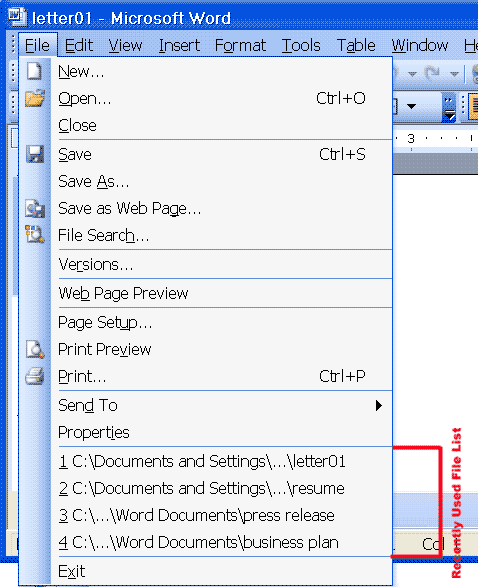
If you enable the recently used file list, clicking File displays the most recently opened files near the bottom of the drop-down menu. You can click the file name to open the file quickly.
Setting Options
Before proceeding, turn on the Status bar, Horizontal scroll bar, Vertical scroll bar, nonprinting characters, and the recently used file list. Follow the procedure outlined here:
- Click Tools on the Menu bar.
- Click Options.
- Click View to choose the View tab.
- In the Show frame, check to see if there are checks next to Status Bar, Horizontal Scroll Bar, and Vertical Scroll Bar.
- If all these items do not have check marks, go to the box
next to the unchecked item(s) and click the left mouse button.
Note: You toggle the check mark on and off by clicking the left mouse button. - In the Formatting Marks frame, check to see if there is a check mark next to All.
- If there is no check mark next to All, go to the box next to All and click the left mouse button. A check mark will now appear.
- Click General to choose the General tab.
- Check to see if there is a check mark next to the Recently Used File List. If there is no check mark, go to the box next to Recently Used File List and click the left mouse button. Check to see if the number in the Entries box is at least four. If it is not, type 4 in the box.
- Check to see if Inches is selected in the Measurement Units box (this sets the unit of measurement for the ruler). If it is not, click the pull-down menu and then click Inches.
- Click OK to close the dialog box.
Throughout these lessons, you will be asked to highlight text. You can use either of the following methods:
Highlighting by Using the F8 and Arrow Keys
- Place the cursor before or after the text you wish to highlight and click the left mouse button.
- Press the F8 key, which will serve as an "anchor" showing where text you wish to highlight begins or ends.
- Press the appropriate arrow key (left arrow to move to the left or right arrow to move to the right) until the text is highlighted. You can use the up or down arrow key to highlight one line at a time. Press Esc to remove the anchor.
Highlighting by Using the Mouse
- Place the cursor before or after the text you wish to highlight.
- Hold down the left mouse button.
- Move the mouse left, right, up, or down until the text is highlighted.
Highlighting Menu Items
Menu Bar
To select a Menu bar item:
- Click the Menu bar item. A drop-down menu will appear.
- To change the Menu bar option selected, move the mouse
pointer across the Menu bar.
Note: After you highlight an item on the Menu bar, you can also use the left and right arrow keys to move across the Menu bar.
Drop-Down Menu Items
When you click any option on the Menu bar, a drop-down menu appears. To choose a drop-down menu item:
- Click the drop-down menu item.
Or
- Use the arrow keys to move up or down the drop-down menu.
- Press Enter to select a drop-down menu item.
Placing the Cursor
During the lessons, you will often be asked to place the cursor at a specific location on the screen. You place the cursor by moving the cursor to the specified location and pressing the left mouse button or by using the arrow keys to move to the specified location.
Choosing Menu Commands by Using the Alt Key
There are many methods to accomplish tasks when you are using Microsoft Word. Generally, when selecting items from the menu, we will ask you to click or highlight the menu item. However, you can also select a menu option by:
- Pressing the Alt key while typing the underlined letter on the Menu bar.
- Typing the letter underlined on a drop-down menu. If a dialog box appears, you can move around the dialog box by pressing the Alt key and any underlined option.
Shortcut Key Demonstration
- Hold down the Alt key and press "o" to select Format from the menu.
- Press "p" to select Paragraph from the drop-down menu.
- Hold down the Alt key and press "i" to select the Indents and Spacing tab.
- Hold down the Alt key and press "b" to select Before from the Spacing frame.
- Press Enter to close the dialog box.
Shortcut Notations
A key name followed by a dash and a letter means to hold down the key while pressing the letter. For example, Alt-o means you should hold down the Alt key while pressing "o." A shorthand notation of the above demonstration would read as follows:
- Press Alt-o, p.
- Press Alt-i.
- Press Alt-b.
- Press Enter.
Typists who are slowed down by using a mouse usually prefer using keys.
Starting a New ParagraphWhen you type in Microsoft Word, you do not need to press a key to move to a new line as you do when typing with a typewriter. To start a new paragraph, press the Enter key.
Exiting Microsoft WordYou have completed this lesson. Typically, you would save your work before exiting. This lesson does not require you to enter any text, so you might have nothing to save. To exit Microsoft Word:
- Click File on the Menu bar.
- Click Exit, which can be found at the bottom of the drop-down menu.
- If you have entered text, you will be prompted: "Do you want to save changes to Document1?" To save your changes, click Yes. Otherwise, click No.
- Specify the correct directory in the Save In box.
- Name your file by typing lesson2.doc in the File Name field.
- Click Save.